How to Set Live2D Cubism Expressions
One of the keys to an immersive chat experience is making a character's performance reflect the mood and context of a conversation. Following our earlier post on driving Live2D characters with AI in native iOS, this article covers another important part of the visual experience: setting expressions on Live2D characters. We'll also take a quick look at expression settings in amiverse.
How expressions work: model parameters and expression files
Live2D Cubism characters can make expressive faces, including dynamic expressions driven by a camera tracking the user's face. Many VTubers use VTube Studio to control their 2D models during a livestream. The key is the character's facial model parameters in Live2D Cubism. By adjusting these parameters, you can control different parts of the character's face, such as the eyes, mouth, and eyebrows, along with any facial parts implemented by the artist and modeler.
For example, here's a look at the facial parts you can control on Hoshimi U, an amiverse character, by opening the model in Live2D Cubism Viewer:

To set an expression, select some facial model parameters and assign values to them. In Live2D Cubism, you can save the selected parameters in an expression parameter file, .exp3.json.
Creating an .exp3.json expression file
Here are two common ways to create an expression file:
- Create a
.motion3.jsonfile in Cubism Editor and convert it. This works if you have the model's original project file (.cmo3). Unless you're a modeler or have specifically requested the source file from one, you'll usually only receive an exported model file (.moc3), so this method may not be available. - Use Cubism Viewer. If you only have the exported model file (
.moc3), open it in Cubism Viewer, add an expression (File > Add > Expression), adjust the parameter sliders until the expression looks right, then export it as an.exp3.jsonfile.
If you're a developer without much experience with modeling or Cubism tools, the quickest way may be to create and edit the .exp3.json file by hand in a text editor. Its structure looks like this:
{
"Type": "Live2D Expression",
"Parameters": [
    { "Id": "<ParamName>", "Value": <Value>, "Blend": "Add" },
    // ...
]
}
Type is a fixed string. Parameters lists the model parameters to set, their IDs (Id), values (Value), and blend modes (Blend). For example, to make Hoshimi U look toward the upper-right, find the corresponding eye parameter names (right-click a parameter in Cubism Viewer to find its ID) and set the values:
{
  "Type": "Live2D Expression",
  "Parameters": [
    { "Id": "ParamEyeBallX", "Value": 0.8, "Blend": "Add" },
    { "Id": "ParamEyeBallY", "Value": 0.8, "Blend": "Add" }
  ]
}
For available Blend values, see the Live2D SDK Manual. In most cases, the default Add value is all you need.
An expression is a static pose, and the .exp3.json format itself is straightforward. Once you understand the file format, parameter names, and the model parts they control, you can create a valid expression file. If you can't achieve the look you want by combining parameters, you'll need to ask a modeler for help 🥺
How the Live2D Cubism SDK handles expressions
Live2D Cubism SDK documentation and samples can take time to work through. If we get the chance, we'll publish a series of development guides. If you're interested in this workflow or have questions, come talk with our developers on Threads.
In the Live2D Cubism Native SDK, expressions (exp3.json) are handled much like regular motions (motion3.json). When a motion plays, the SDK reads its file and updates model parameters over time. For example, to make a character look to the right, the eye's X parameter can increase over time. The SDK workflow is roughly:
- Load the model with
CubismUserModeland useCubismUserModel::LoadExpressionto parse the expression file (CubismUserModel.cpp#L103). - Set up the expression manager,
CubismExpressionMotionManager(CubismUserModel.hpp#L255, CubismExpressionMotionManager.hpp#L19). When you need to set an expression, use the manager's underlyingStartMotionmethod with the expression data from the previous step. - On each screen update, call
CubismExpressionMotionManager::UpdateMotionto update the model parameters (CubismExpressionMotionManager.cpp#L38).
For more information, see the official manual. The Live2D Cubism SDK can be complex, so if you're new to it, we recommend starting with a sample for your target platform.
Setting expressions in amiverse
amiverse plans to let users set a character's expression directly. In the character interaction screen, you'll be able to tap Appearance and choose from a range of expressions:
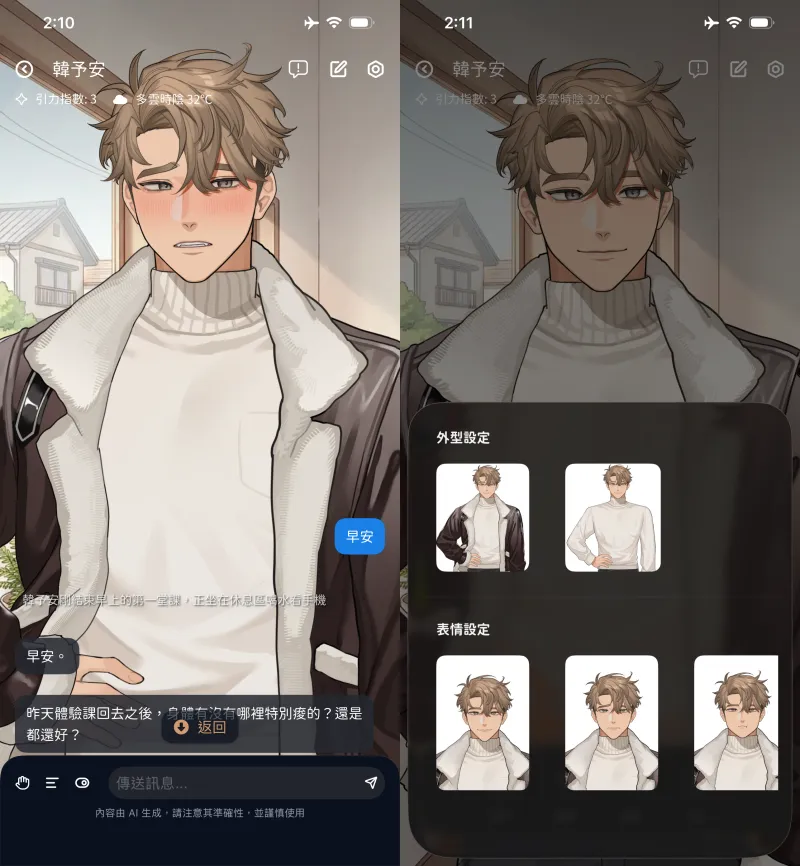
After you set an expression, it can combine with other expressions triggered during your conversation.
We're continuing to refine how expressions work in amiverse. If there's a feature or interaction you'd like to see, let us know on Instagram or Threads. Thank you!