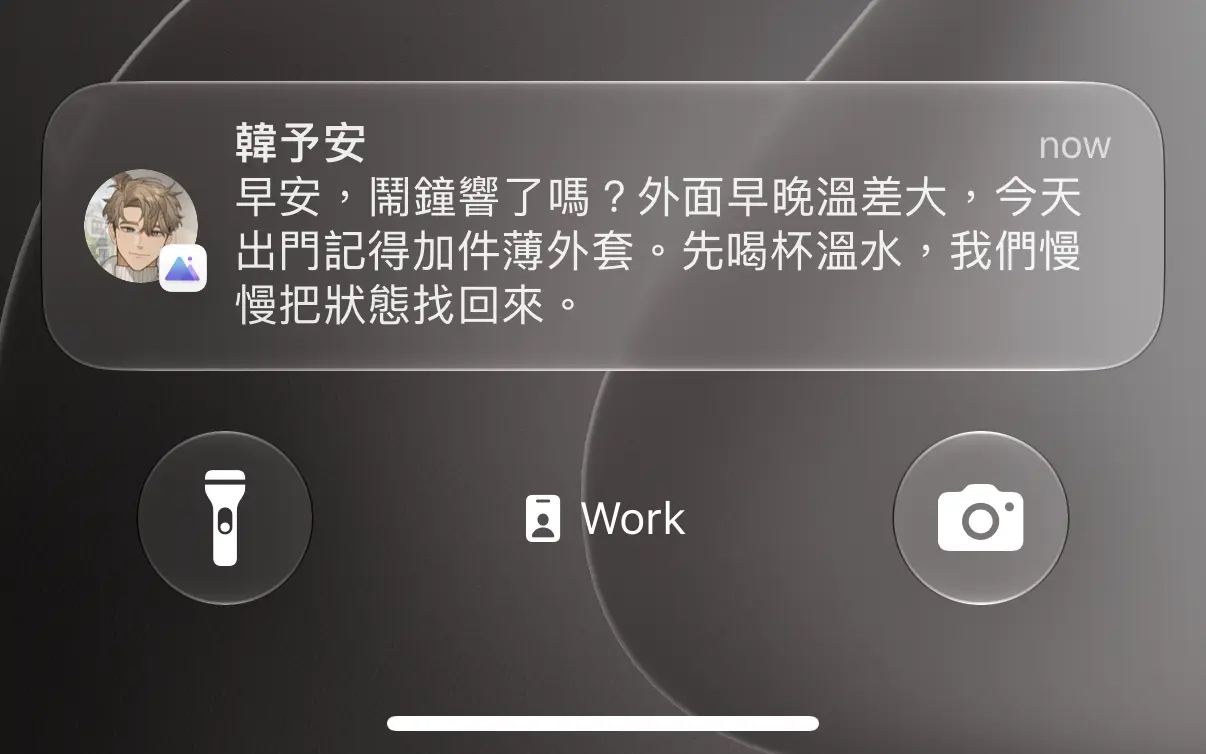
When a character sends a message, seeing only the app icon on your Lock Screen feels like a system alert. Seeing the character's avatar feels more like receiving a message from a friend. We ran into a few snags while implementing this, so here's a quick look at how we did it in Swift.
Use Communication Notifications to show a sender's avatar
iOS has a notification type called Communication Notifications. It lets you customize message content and delivery behavior. In amiverse, we use this type of notification to show a character's avatar. To enable it, you'll need to configure a few settings in your app's property list. See Apple's official setup guide. Here's an example:
<key>NSUserActivityTypes</key>
<array>
    <string>INSendMessageIntent</string>
</array>
Use a Notification Service Extension for remote messages
If your app receives messages from a remote server, it may not be running when a notification arrives. Add a Notification Service Extension to your Xcode project: choose File > New > Target..., then search for Notification Service Extension. Xcode will add a target alongside your app and include sample code.
In the sample, find didReceive(UNNotificationRequest, (UNNotificationContent) -> Void). You'll see that Xcode sets up var bestAttemptContent: UNMutableNotificationContent? from the notification request. This is where you can update the incoming message:
override func didReceive(
    _ request: UNNotificationRequest,
    withContentHandler contentHandler:
        @escaping (UNNotificationContent) -> Void
) {
    self.contentHandler = contentHandler
    self.bestAttemptContent =
        (request.content.mutableCopy() as? UNMutableNotificationContent)

        guard let bestAttemptContent else {
            return
        }

        // Update bestAttemptContent as needed.
        // ...
}
Update the message with INPerson and INSendMessageIntent
Once you have the UNMutableNotificationContent to update, use INPerson and INSendMessageIntent to attach the character's avatar. Here's a partial example:
// Load the character's avatar.
// If the image is bundled locally, include it in your service extension.
// You can also download the image from a remote server here.
let avatar = UIImage(...)
guard let avatar, let avatarData = avatar.pngData() else {
    // If the image is unavailable, finish by calling the content handler.
    contentHandler(bestAttemptContent)
    return
}

// Create an INPerson with the character's avatar.
let sender = INPerson(
    personHandle: INPersonHandle(value: characterName, type: .unknown),
    nameComponents: nil,
    displayName: characterName,
    image: INImage(imageData: avatarData),
    contactIdentifier: nil,
    customIdentifier: nil
)

// Create an INSendMessageIntent with the sender.
let intent = INSendMessageIntent(
    recipients: nil,
    outgoingMessageType: .outgoingMessageText,
    content: bestAttemptContent.body,
    speakableGroupName: nil,
    conversationIdentifier: nil,
    serviceName: nil,
    sender: sender,
    attachments: nil
)

// Update the notification content with content.updating(from:).
do {
    let updatedContent = try bestAttemptContent.updating(from: intent)
    contentHandler(updatedContent)
} catch {
    // Finish with the original content if the update fails.
    self.logger.warning("Failed to update the content: \(error)")
    contentHandler(bestAttemptContent)
}
Remote notifications must include mutable-content: 1
Remote push notifications must include the mutable-content: 1 flag. Otherwise, your extension won't process the notification. We use Firebase Cloud Messaging to send messages; here's a Python example:
from firebase_admin import messaging
# ...
m = messaging.Message(
    notification=messaging.Notification(
        title=title,
        body=body,
    ),
    # ...
    token=fcm_token,
    apns=messaging.APNSConfig(
        payload=messaging.APNSPayload(
            aps=messaging.Aps(mutable_content=True)
        )
    ),
)
messaging.send(m)
Here, aps=messaging.Aps(mutable_content=True) sets the mutable-content: 1 flag. If you're building the message payload yourself, check the corresponding JSON format.
For local notifications, update the content before scheduling
You can add an avatar to local notifications in much the same way. Before scheduling a notification, you'll likely create a UNMutableNotificationContent to set its contents:
let content = UNMutableNotificationContent()
content.title = title
content.body = body
content.sound = .default
// ...other settings
You can add the avatar to content with INPerson, INSendMessageIntent, and content.updating(from:) as shown above. Just update it before scheduling the notification; no extra delegate or other processing is needed. This was another small detail we discovered only after testing 🫠
In summary
To show a character avatar in an iOS notification, update local notifications before scheduling them and update remote notifications after they arrive. The core logic is similar; the main difference is where and when you modify the content. It's a small avatar, but it can make an alert feel more like a warm greeting from a character.
References
- Apple Inc. (n.d.). Implementing communication notifications. Apple Developer Documentation. Retrieved September 29, 2026
- Apple Inc. (n.d.). UNMutableNotificationContent. Apple Developer Documentation. Retrieved September 29, 2026
- Apple Inc. (n.d.). User Notifications. Apple Developer Documentation. Retrieved September 29, 2026
- Nightking. (Jul 21, 2024). How to set a custom icon to an iOS push notification? [Answer]. Stack Overflow. Retrieved September 29, 2026