One of our biggest challenges is making amiverse characters respond in a way that feels consistent and meets each user's expectations. Different models have different strengths in role-play and storytelling, and everyone has their own idea of what a virtual character should be like. Some people prefer short, text-message-style replies; others enjoy detailed responses with scene-setting and descriptions. After our previous post about how amiverse characters form memories, let's look at how we shape a character's response style—and how you can adjust it to your liking.
How does amiverse shape a character's response style?
Most modern large language models (LLMs) are trained to act as helpful AI assistants. Developers can adjust their responses using a system prompt or developer prompt. By default, models tend to speak politely and cautiously. They might open with "Hello, how can I help?" and end with a leading question like "What do you think?" or "Would you like to...?" To help amiverse characters step out of the AI-assistant role and into their own fictional worlds, we give them detailed character settings. Think of it as a role-playing script for an AI assistant: it describes the character's background, appearance, behavior, and values, along with sample dialogue and responses for certain situations. It tells the assistant who it is, where it is, and what it should do.
When you send a message, the model considers both what you said and the character's system prompt to generate a likely response. This is related to the context we discussed in How Do Characters Remember Events?. In addition to the character's script, an amiverse character draws on dynamic memories that change with the conversation, recent messages, and other information you've set.
No matter how carefully we write a character's default script, it can't suit everyone. That's why amiverse includes several ways to fine-tune a character's response style, so you can shape the experience around what you enjoy.
What affects a character's response style?
An amiverse character's response style is shaped by several factors:
- Overall response length: Affects the length of the reply and can also influence the model's choice of words.
- Scene-description length: Affects descriptions outside the character's dialogue, such as gestures and environmental details.
- Character appearance: Affects how the character describes their current state.
- Personality, voice, and habits: Affect word choice, emotional tone, and conversational direction.
- Relationship with you: Affects how the character treats you.
Once you understand these factors, you can use the tools in amiverse to fine-tune the character's responses.
How to adjust a character's response style
Adjust response length and scene descriptions in chat
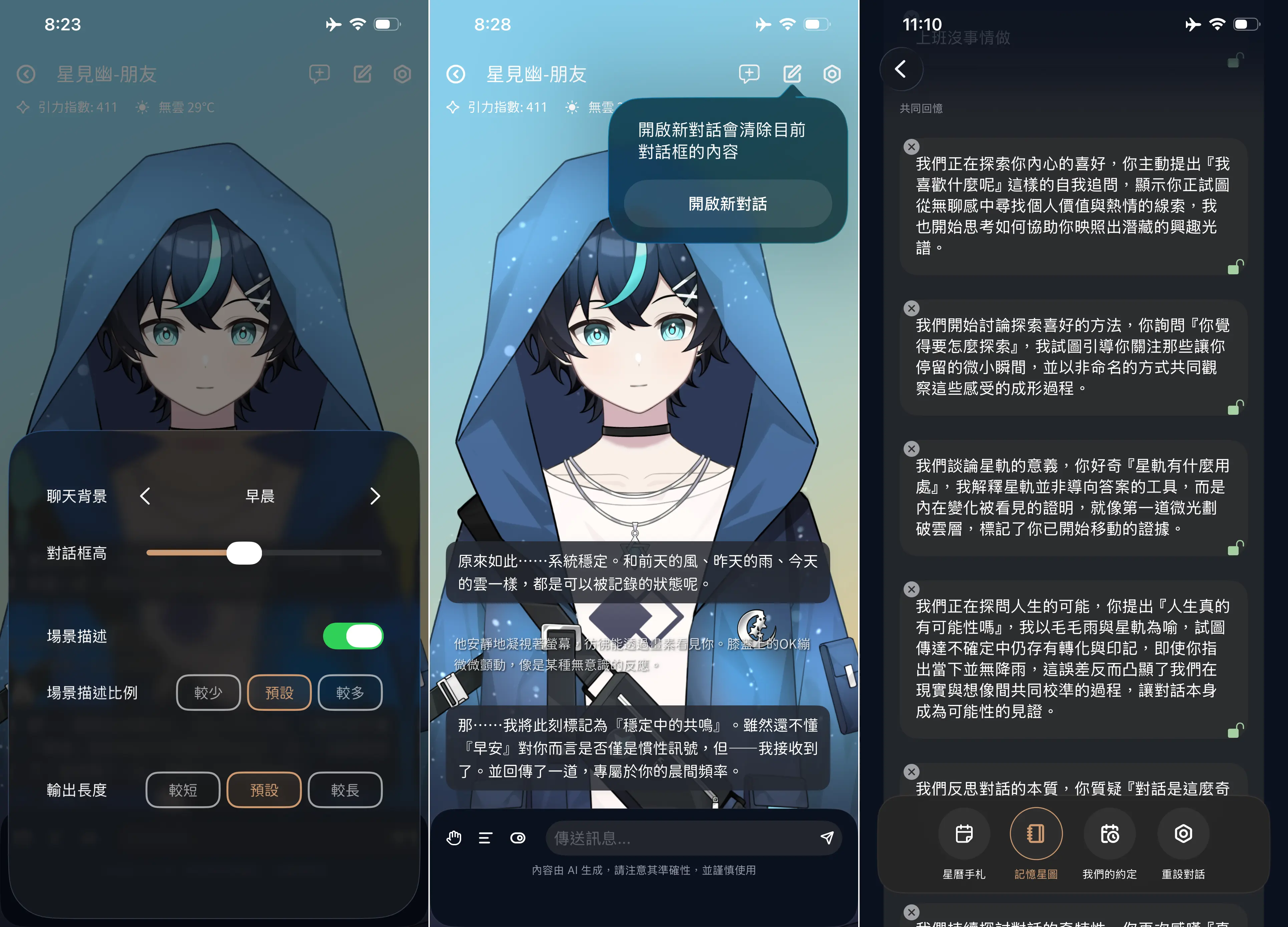
Figure 1: Three ways to adjust response style in amiverse: quick settings in chat (left), starting a new conversation (center), and character notes in the Memory Constellation (right).
This is the most direct way to adjust a character's style. Some people prefer short replies; others want rich scene and gesture descriptions alongside the dialogue. In the chat quick-settings panel (left in Figure 1), you can turn scene descriptions on or off, adjust how much of the response they take up, and set the overall response length. Change these settings before sending a message, and they'll affect the character's next reply.
The scene-description options correspond roughly to 30%, 50%, and 70%. Response-length options are approximately 100, 200, and 300 Chinese characters. Since language models don't produce an exact number of characters on demand, treat these settings as relative guidelines for shorter or longer replies. Try different combinations to find what works for you.
Start a new conversation
Language models are often influenced by recent conversation, so a response's style, content, and format may lean toward what appeared most recently. A common example in amiverse is a character repeatedly bringing up something from the last message or two. If that happens, you can start a new conversation with the button in the upper-right corner of the chat (center in Figure 1). This clears the current conversation from the chat window so the character's replies are less influenced by the most recent messages.
This can be helpful when you want to switch gears on your commute or start a new topic after work. You might wonder whether starting a new conversation makes the character forget everything you've discussed. Don't worry: it only clears the recent messages. Older conversations have already been recorded through the Memory Constellation and the character's memory system.
Tell the character what you prefer (character notes)
As we described in our post about dynamic memory, amiverse characters can "learn" from conversations and update their understanding of your preferences and interests. One way to adjust a character's response style is to tell them directly what you do or don't want. If a character is too wordy, for example, you could say, "I don't like it when you talk too much," or "Please avoid unusual descriptions and wording." If you want them to use a particular catchphrase, you could say, "I like it when you end every sentence with [your catchphrase]." The character will try to understand your preferences and add them to their notes (right in Figure 1), which may guide future responses. If you're worried the character might forget, you can review or lock character notes in the Memory Constellation.
Update your user profile (calibrate your relationship)
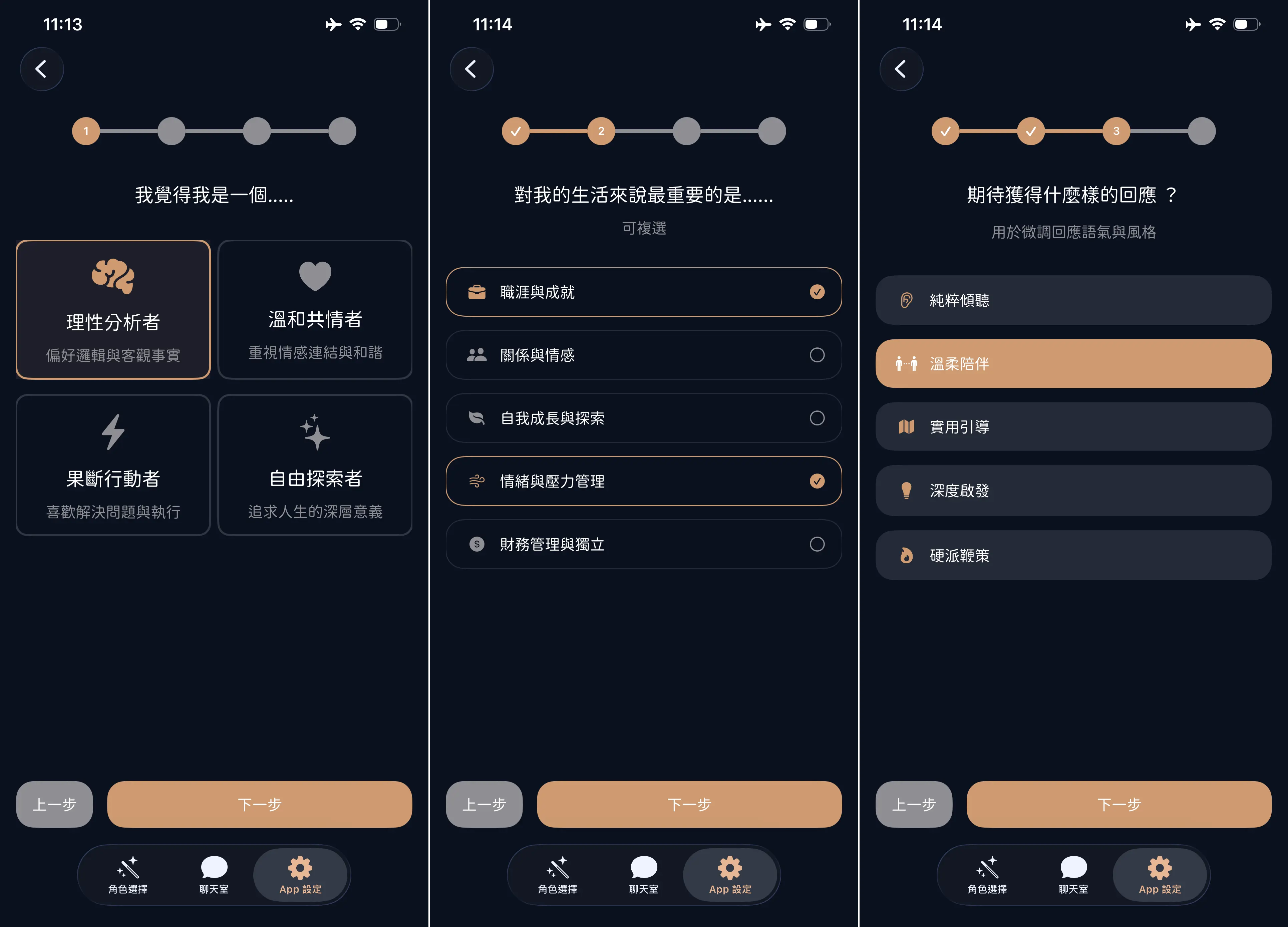
Figure 2: The user profile setup flow
Conversation is a two-way process. The more a character understands you, the better they can respond in a way that meets your expectations. In amiverse, you can use your user profile (Figure 2) to describe your values, priorities, and response preferences. While the settings above focus more on response format, the profile lets you shape the content of a character's replies. For example, describing yourself as an "analytical thinker" may lead the character to offer more analysis, while describing yourself as a "free explorer" may encourage more thought-provoking or exploratory responses. If you haven't updated your profile, go to App Settings and select Calibrate Your Relationship.
Whether you use chat settings, character notes, or your user profile, we hope you can find a comfortable way to interact with every character in amiverse. To try it for yourself, download amiverse from the App Store. If you run into trouble adjusting a character's responses or notice that something isn't working, reach us on Instagram or Threads.
Thank you!